Your Hamilton Account
Welcome! If you are a new student or employee, you will need to claim your account in Hamilton’s Rapid Identify Portal to gain access to important online features like email and network access.
-
Activate Your Account
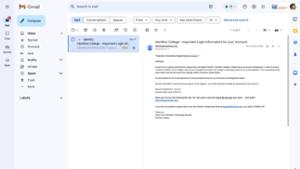
You can expect an email from identity@hamilton.edu with a unique claim code.
-
Wireless Access (computers)
Your account gives you access to Hamilton’s wireless internet.Wireless Access (mobile devices)
You can configure your mobile device for wireless access, too. -
Problems?
Call the Help Desk at 315-859-4181, open a ticket in our Client Portal, or visit Burke Library.Account Security
Your account will be automatically enrolled in Duo Multi-Factor Authentication.
Activating Your Account
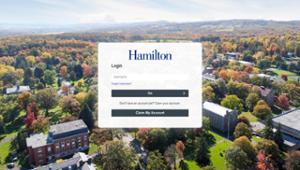
Go to https://identity.hamilton.edu, enter the claim code from your email, and create a new password. Use this password for email, computer login, and the My Hamilton portal.
Changing Your Password
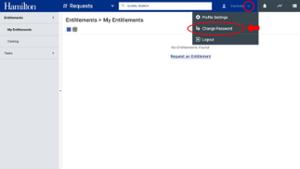
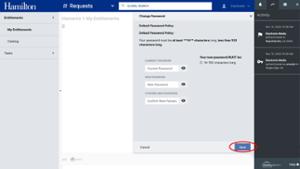
After you activate your account, you can change your password at any time. Your email, network, Blackboard, and WebAdvisor passwords are all synchronized, so changing one changes all of them.
Managing Your Account
You'll receive an account claim email from the Identity Management system to enroll in Rapid Identity.
Start the claim process by visiting the Rapid Identity Portal directly, or by using the link in your claim email. Select CLAIM MY ACCOUNT and enter the username and claim code from the email. You'll then be prompted to set a new password that meets the criteria in our Password Policy.
NOTE: The username and claim code are only valid for claiming your account — they will not work as login credentials on Rapid Identity itself. Attempting to log in with them directly returns a failed login message.
Once you've set your password, your account is active. Test your new credentials by logging in at My Hamilton with your Hamilton username and the password you just created.
 Your account will be automatically enrolled in Duo Multi-Factor Authentication as a second layer of protection for your account. Duo can leverage a personal mobile device as a second layer of authentication. Having a smartphone makes for an easier/more secure experience and is the preferred method. If you do not have a smartphone, please contact the Help Desk.
You are required to activate Google’s 2-step verification for your email account. Doing so will prevent cybercriminals from accessing your account, even if they possess your password.
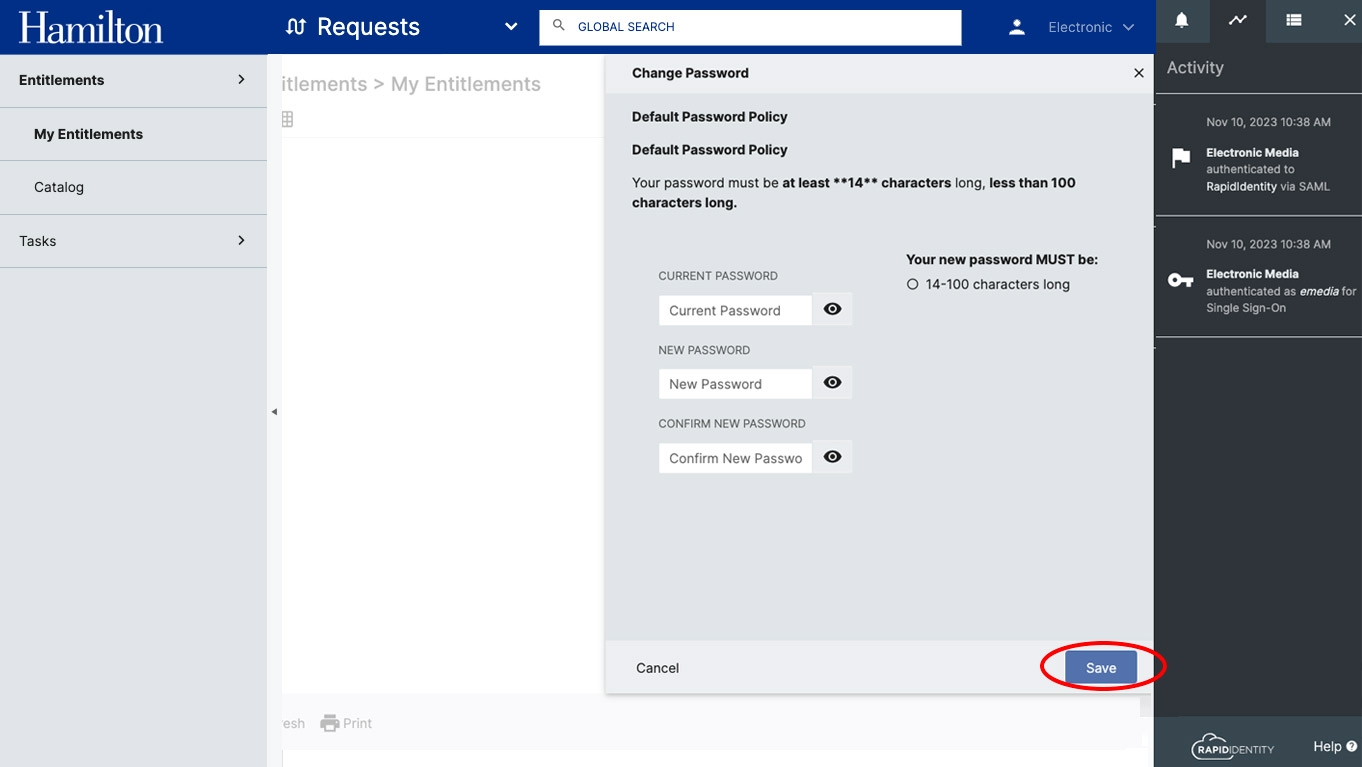 You may change your password any time by logging in to the Rapid Identity portal and changing your password. Remember that your email, network, Blackboard and WebAdvisor passwords are all synchronized to use the same password.
With any password change, remember to update any instances of saved passwords used to access your email or connect to the College wireless network.
Once your account has been activated, you can access your email by logging in to https://gmail.com or by visiting MyHamilton at http://my.hamilton.edu. In order to access your email through MyHamilton, you must first grant access via the link in the Email channel.
Find setup instructions in our Knowledge Base:
- Gmail app setup for iOS and Android
- Secure Wireless Configuration
To configure your personal computer for Hamilton's wireless network, visit the Connecting Personal Computers to the APS-Hamilton Wireless Network article in our Knowledge Base.
Certain secure systems and services are only available from on-campus. If you need access to these services from off-campus, you can request access to connect to Hamilton's Virtual Private Network (VPN). More information can be found in our Knowledge Base article.
Good account security depends on keeping your account ID and password private. If your password is easily obtained or discovered, it puts the college network and all of your electronic resources at risk. More information can be found in the College's Password Policy.
Use of the College's systems and services are subject to all applicable guidelines and policies, including the Appropriate Use of IT Resources Policy. More policies, guidelines, and procedures can be found on the LITS Policies Page and the College's Policy Page.
The Rapid Identity portal enables users to directly request access to certain resources or systems, rather than waiting for an administrator or system manager to assign them manually. Upon approval, access is granted seamlessly.
How It Works
- User Request: Through the Rapid Identity portal, end users can search for and request specific entitlements (terminology in portal) found in their Catalog.
- Approval Workflow: Depending on the entitlement being requested, the request might be automatically approved or may be forwarded for review before access is granted.
- Access Grant: Once approved, the system grants the requested access to the user, notifying them of the update.
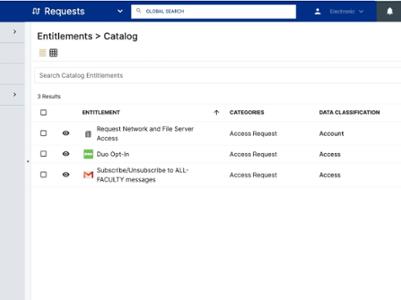 Access to Rapid Identity Catalog
Once you have logged in to the portal:
- Select REQUESTS from the top blue drop-down bar.
- Select CATALOG from the left sidebar.
- Select from the available entitlements using the checkmark.
- Click REQUEST at the bottom.
Protecting Your Account
Safeguard Your Credentials
Ensure that your username and password are kept confidential and not shared with anyone. This will help prevent unauthorized access to your account and protect sensitive information.
Keep Contact Information Updated
In case of any changes to your contact information, such as email address or phone number, please update it promptly within the account settings to ensure seamless communication and account recovery options.
Use Resources Responsibly
Adhere to the College’s Appropriate Use of IT Resources Policy and utilize digital resources responsibly and ethically.
Stay Informed
Keep yourself updated with any changes or updates to the Rapid Identity Cloud system and its services through official communication channels provided by the College.
Problems?
If you experience problems with your Hamilton account, please reach out to the LITS Help Desk by phone at 315-859-4181, by opening a ticket through the Client Portal at helpdesk.hamilton.edu, or by visiting us on the first floor of Burke Library.
Contact
LITS Help Desk
